









AI Sticker Generator: Plan a sticker illustration
Explore a sticker illustration from a pet, character or object photo. Pick an expression and drawing style for a clear silhouette; the result is an image, not a ready-to-cut file.
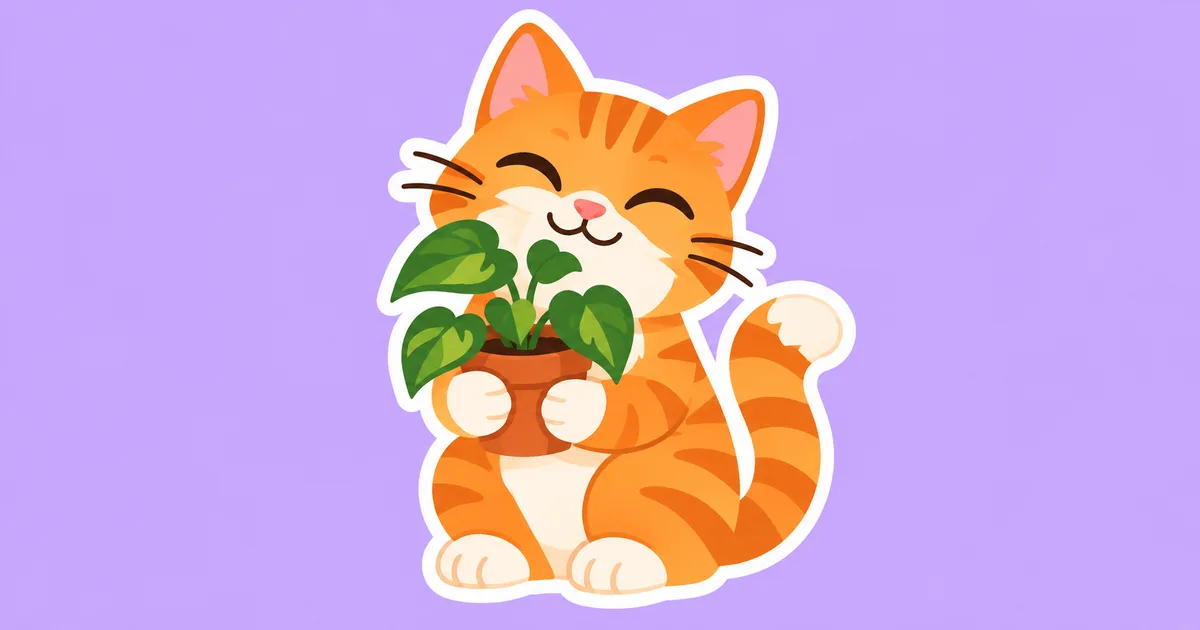
Explore a sticker illustration from a pet, character or object photo. Pick an expression and drawing style for a clear silhouette; the result is an image, not a ready-to-cut file.
Turn a pet, character sketch or everyday object into a sticker-style illustration with a clear pose and silhouette. Choose one expression or action first so the subject stays readable. The output is an illustration concept that can be prepared for sharing or print in a separate workflow.
Turn a pet, character or object reference into a sticker-style illustration. Choose an expression and drawing style, then review the silhouette.
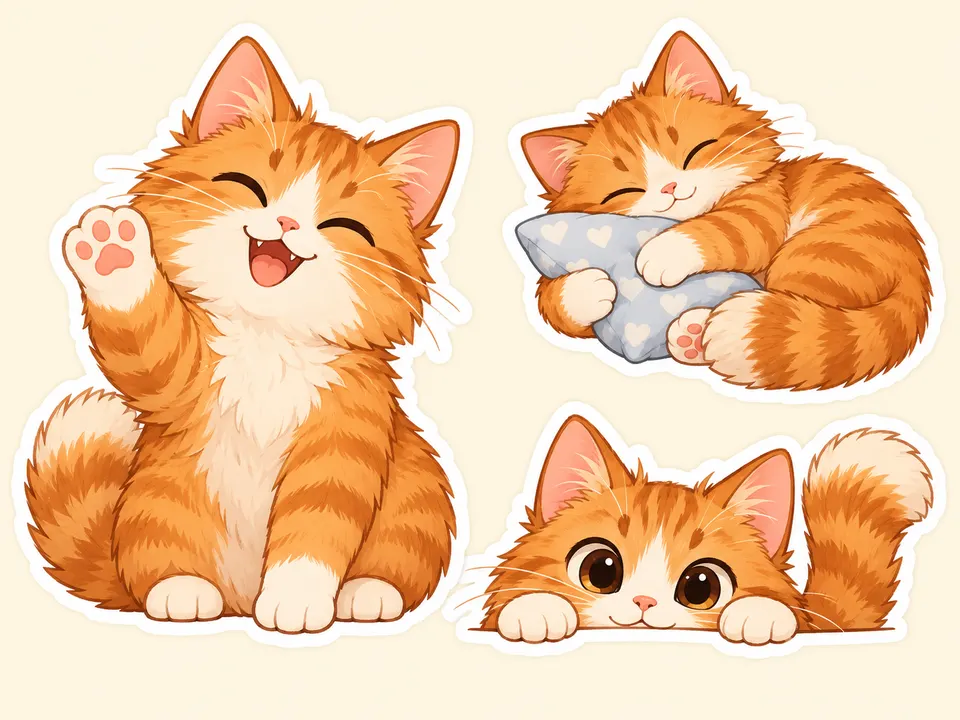
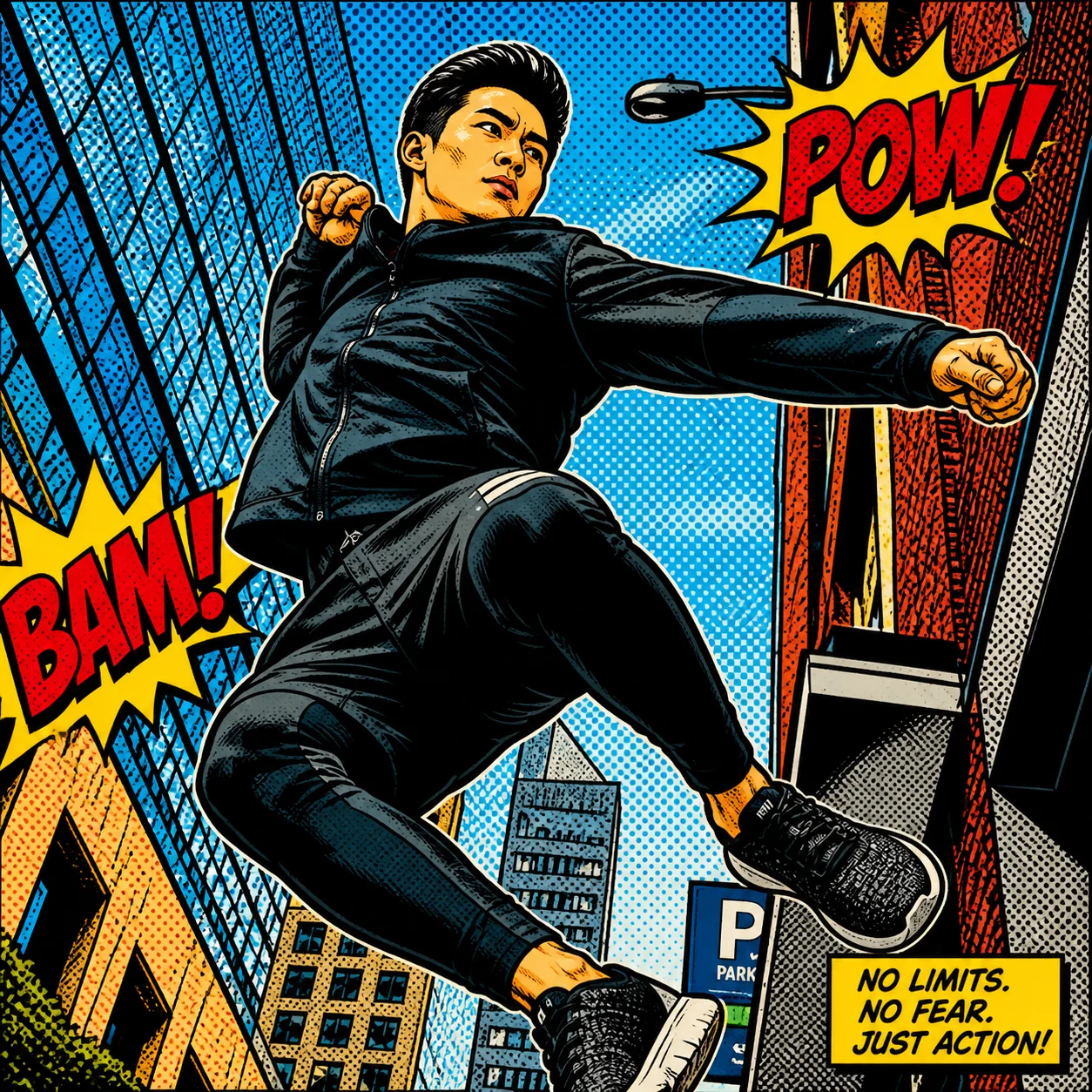
Expression: Happy · Drawing style: Bold graphic
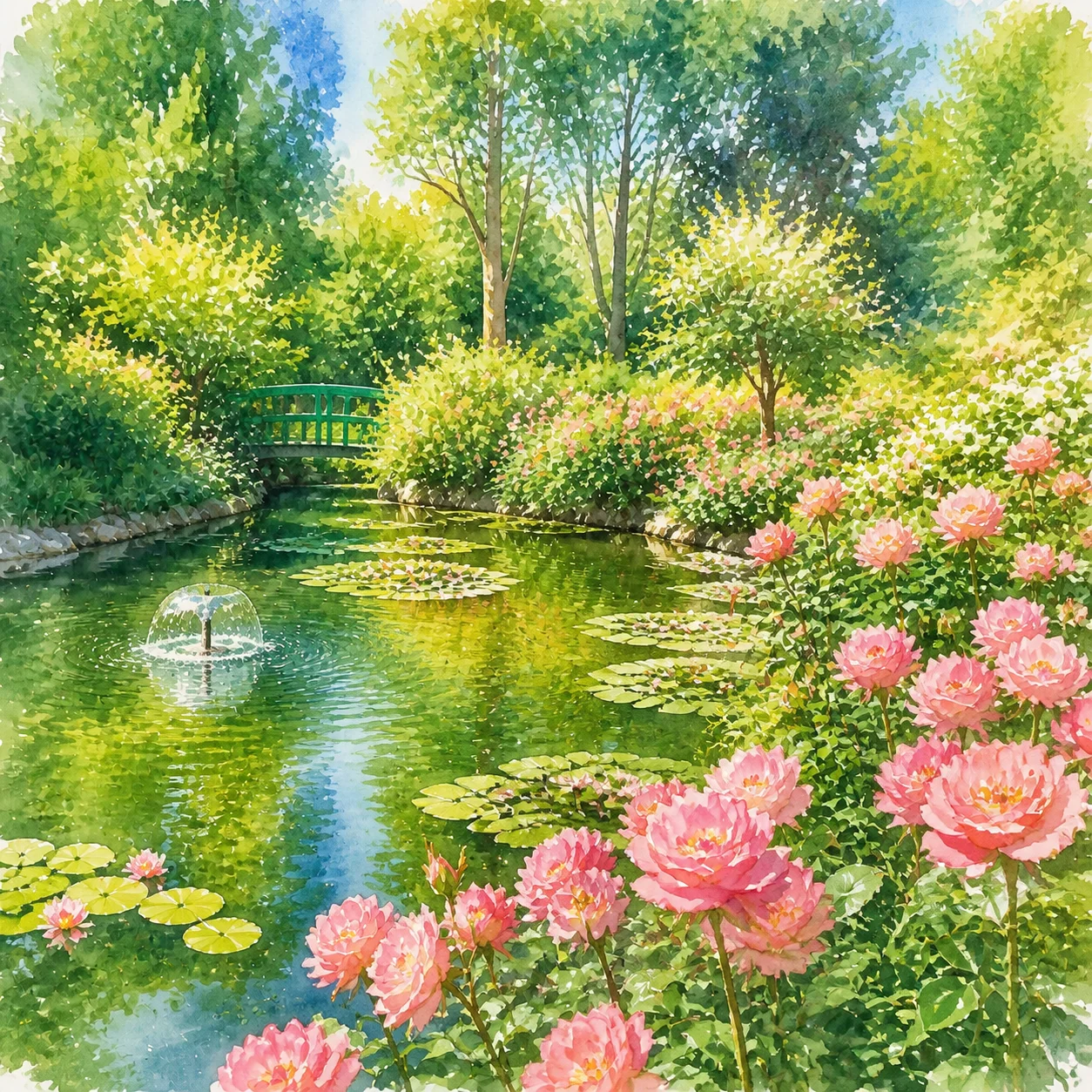
Expression: Sleepy · Drawing style: Watercolor
Expression: Playful · Drawing style: Flat color
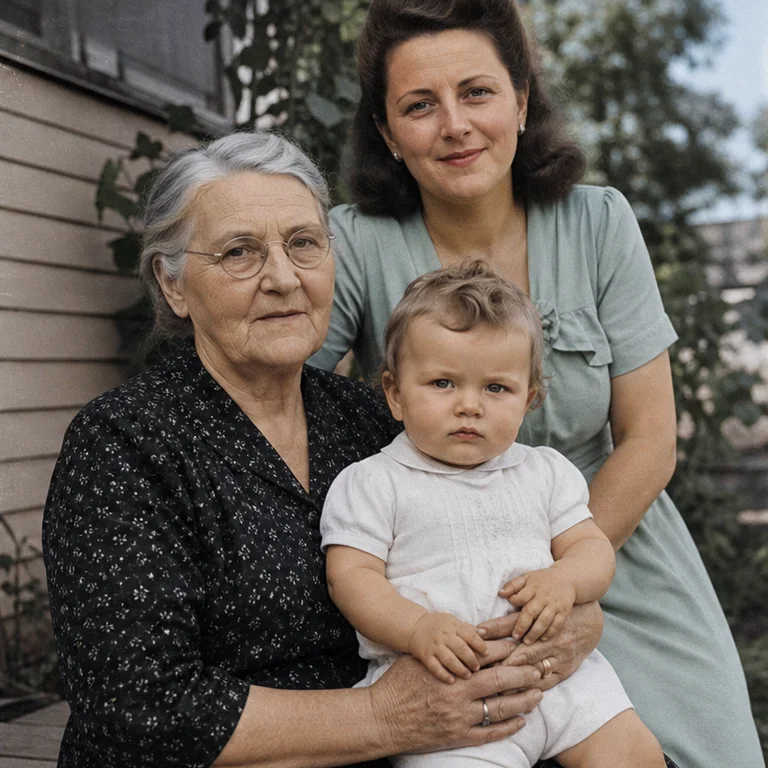
Yes, a clear pet reference is suitable for exploring the style. Show the face and distinctive markings, then check that the illustration still represents the same animal rather than a generic pet.
This tool does not promise an automatically transparent result. A white border or pale background is not transparency. Inspect the downloaded file and remove the background separately when the destination requires it.
Reuse the same reference and drawing style, then select a different expression. Consistency is not guaranteed, so compare the images and correct mismatched details before assembling the set.
No. The output is an image, not an installable messaging-app pack. Prepare the app’s required dimensions, formats and pack metadata in the appropriate publishing workflow.
It can be a visual starting point. Confirm resolution, bleed and a separate cut path with your printer; the illustrated white outline is not a production cutting line.
Choose the model and settings first, then check the credit amount shown beside the generation action. Different supported models and resolutions can have different costs; this page does not promise free or unlimited generation.
Choose an available aspect ratio that suits the reference and intended placement. Sizes and formats depend on the selected model. A larger image is still a visual concept, not a production design file.
Use the result panel to inspect and download the image. You can also check generation history if you leave the page while the task runs. Review the full image before sharing it or handing it to a designer.

Explore furnishings for an empty room: upload a room photo, choose the room type and furniture style, then generate a virtual-staging concept.
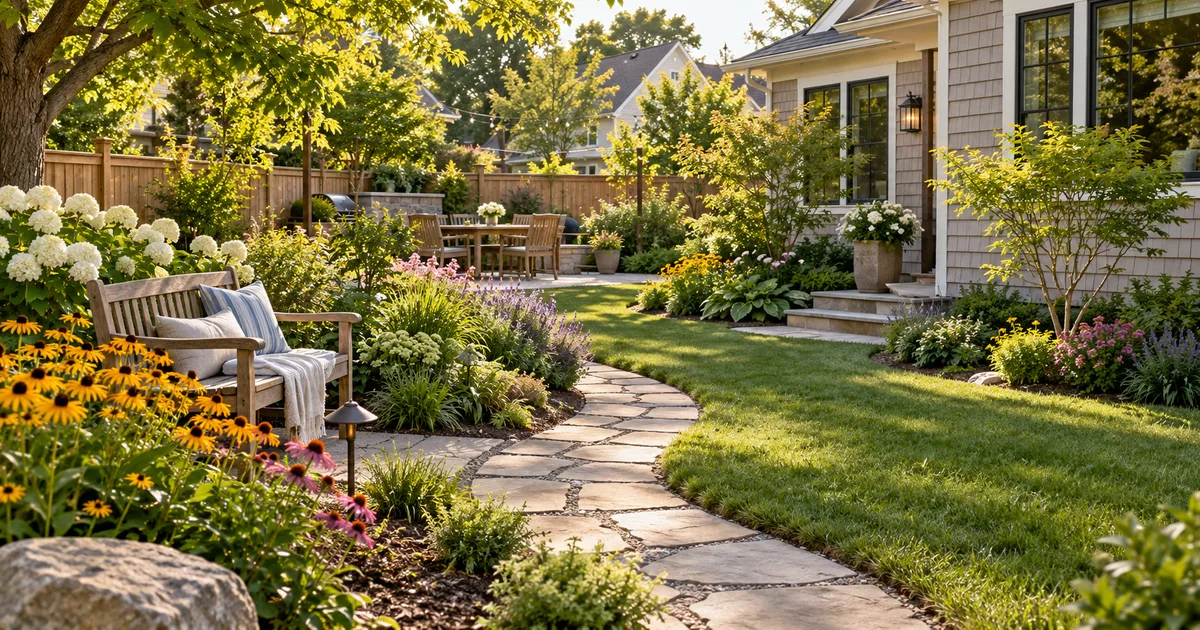
Explore a garden concept from your yard photo. Choose how you want to use the space and a landscape style; review planting and paths before planning work.
Explore a logo symbol from a sketch or visual reference. Choose a graphic style and palette, then review the raster concept at a small size.
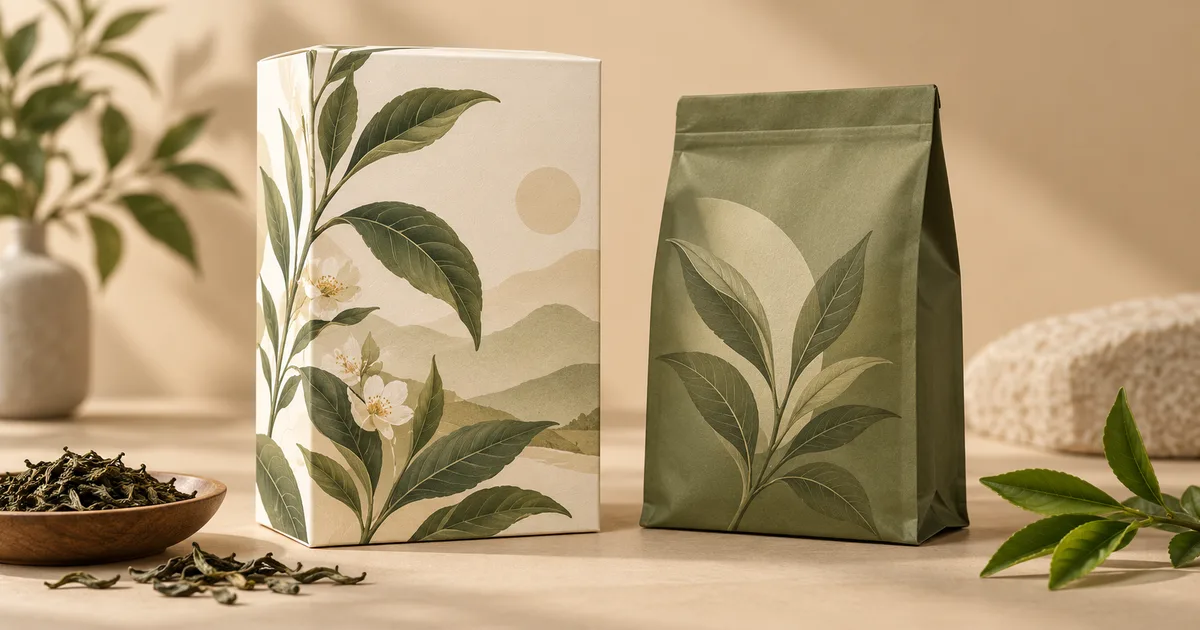
Explore a new packaging concept from a package reference. Choose a package format and visual style, then review graphics, folds and label space.
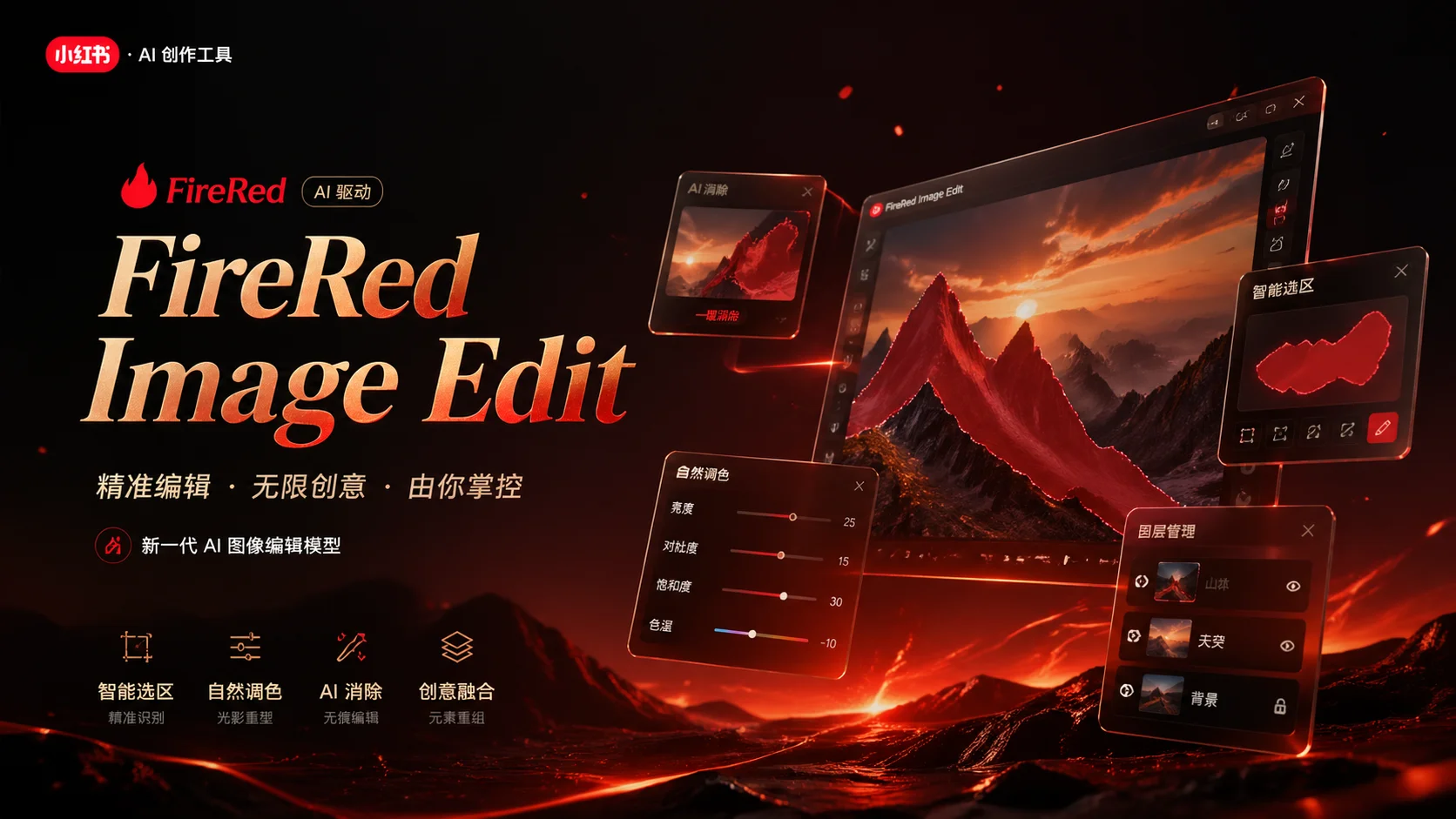
Use the FireRed Image Edit AI model online ? Xiaohongshu FireRed's open-source instruction-driven image editing model fo
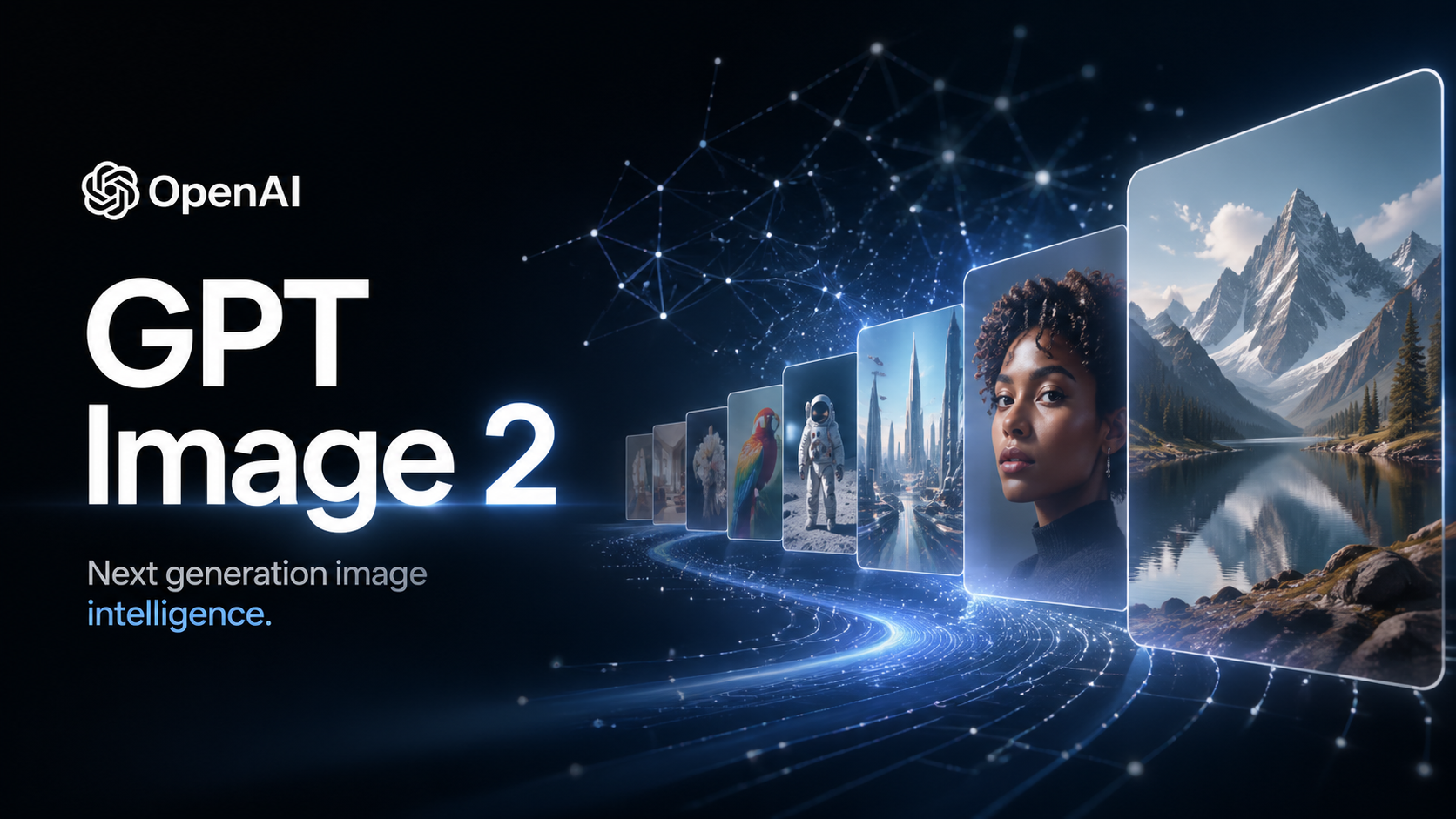
OpenAI's most advanced image generation model with native Thinking Mode, 95%+ text rendering accuracy, web search during
Nano Banana Pro (also known as Gemini 3 Pro Image ) is a free AI image generator by Google DeepMind that produces stunni
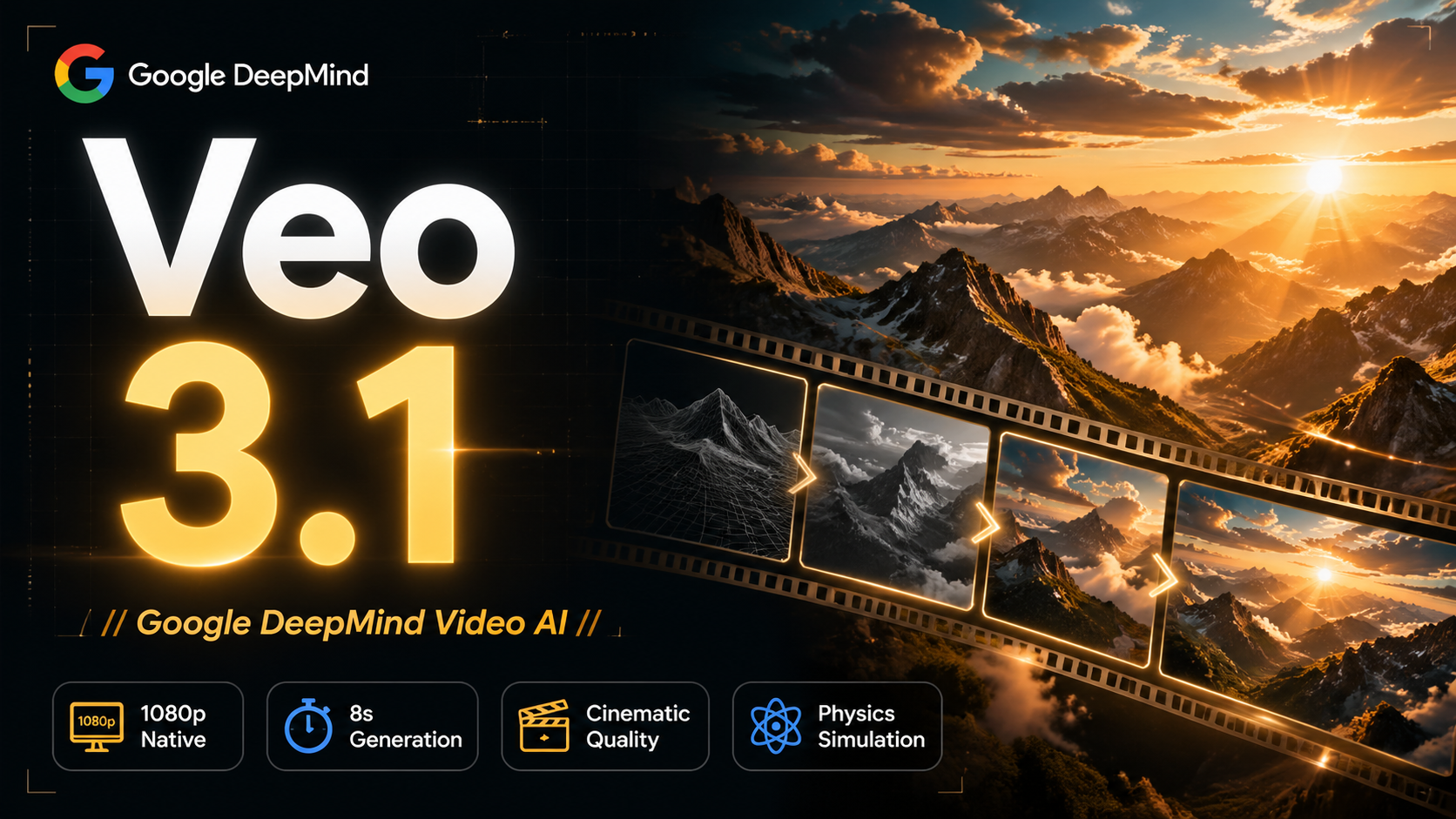
Veo 3.1, released in October 2025 by Google DeepMind, delivers cinematic 1080p videos with native audio generation — fre
OpenAI's most advanced general video generation model — create high-quality videos from text prompts and images with rea
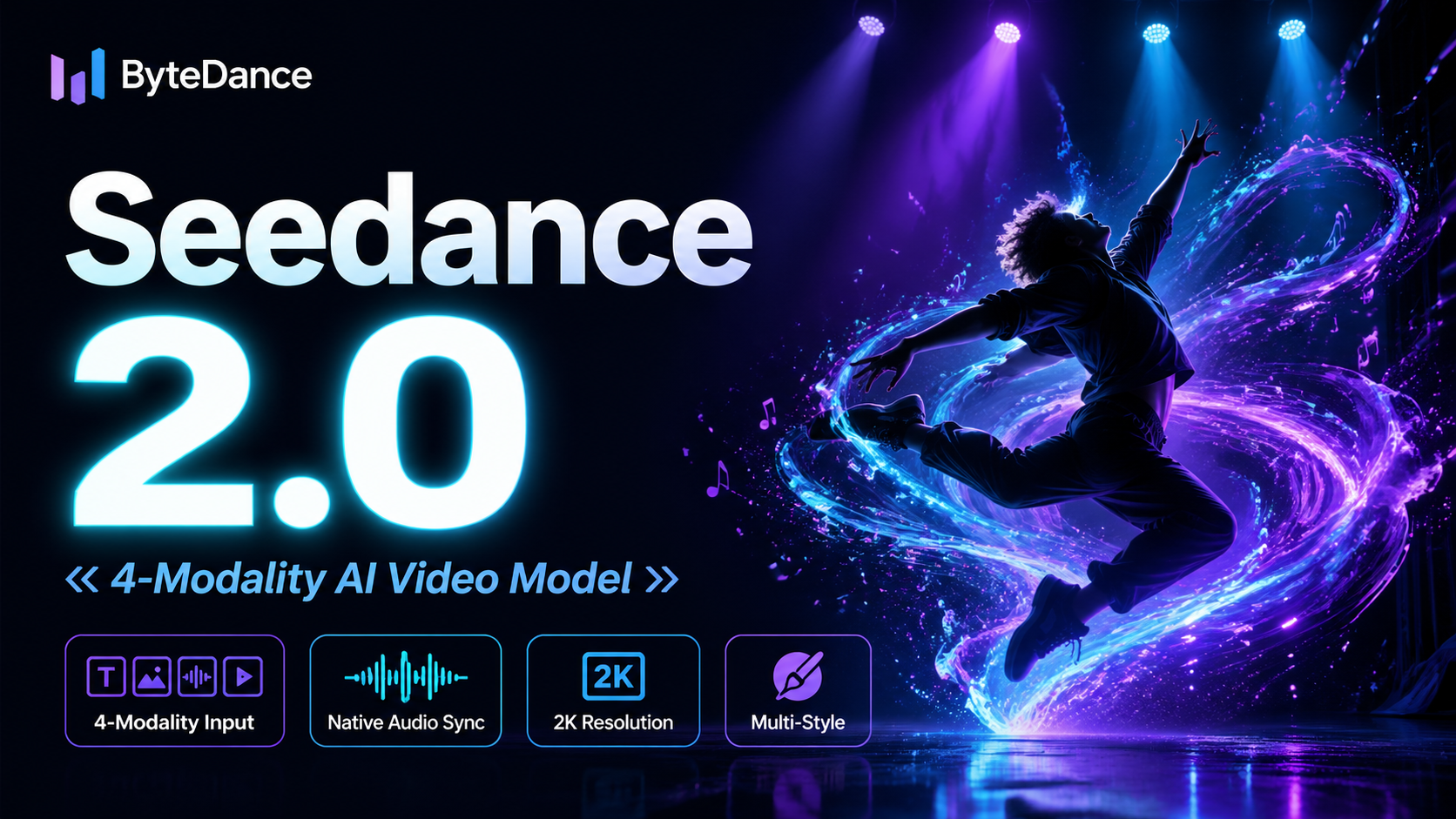
ByteDance's next-generation AI video model with the revolutionary @-reference system. Combine text, images, video clips,
Start editing your images with state-of-the-art AI technology


10,000+ users