
Grok Imagine Video 1.5 Lite
Turn a written scene or one starting image into a short video with native audio. Choose 1–15 seconds, review the credit estimate and develop your next shot.
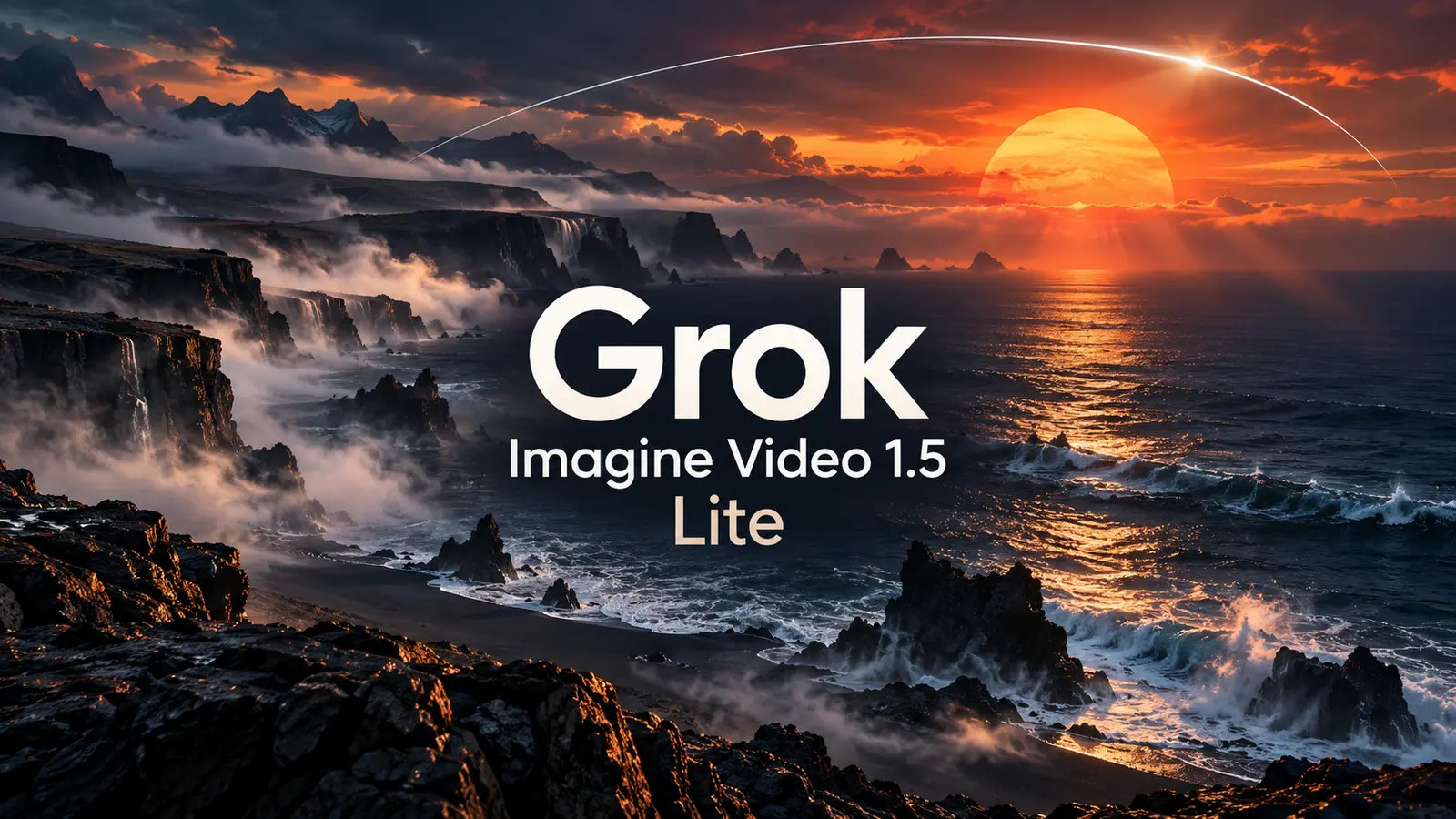
Create short videos with Grok Imagine Video 1.5 Lite
Grok Imagine Video 1.5 Lite creates short videos from a written scene or one starting image, with native audio generation. Explore product motion, social clips and storyboard ideas using 1–15 seconds and a choice of 480p, 720p or upscaled 1080p.
Plan, generate and refine your shot
Prepare a focused brief, choose the output settings and review motion, sound and detail.
Core Features Overview
Turn a written scene into motion
Describe the subject, setting, movement and camera direction in a short, coherent shot. A ceramic vase under side lighting with a slow camera orbit is easier to assess than several scene changes at once. Text-to-video needs no uploaded image; use the result to compare your composition and motion idea before developing a longer edit.
Animate one starting image
Upload one JPG, PNG or WEBP image of up to 10 MB and describe how the scene should move. Use a sharp subject, useful background space and a composition close to your intended video. The image determines the output aspect ratio. Faces, product labels and fine edges can change during animation, so compare the result with your original.
Choose the shot length and framing
Choose a whole-second duration from 1 to 15 seconds. Keep a four-second brief focused on one action; use longer clips when a movement needs time to develop. Text-to-video offers auto, 16:9, 9:16, 1:1, 4:3, 3:4, 3:2 and 2:3. Choose vertical framing for a mobile story or a wide frame for a presentation. With a starting image, prepare the crop before uploading.
Compare 480p, 720p and 1080p
Start at 480p to explore a shot, then consider 720p or 1080p for a larger placement. The model produces 1080p by upscaling 720p; selecting it does not make the source rendering native 1080p. Higher resolution also costs more and cannot repair inconsistent motion, incorrect lettering or a changed face. Inspect the downloaded video at its intended display size.
Describe sound alongside the scene
The model can generate video with native audio. Mention relevant ambience or a simple sound cue, such as waves against a quiet coast or a cup placed on a wooden table. This workspace has no separate audio upload or sound toggle. Review speech, timing, background noise and music before sharing; requested dialogue and synchronization are not guaranteed.
Check the estimate before generating
Check the current credit estimate in the generator before submitting. The cost depends on duration, resolution and input images.
Develop a usable creative draft
Try a product movement study, an establishing shot for a storyboard or a vertical social-video concept. Keep the same brief while changing one major setting so the results are easier to compare. Add exact titles, logos and final typography in your editor after selecting the video. Check permissions for people, products and artwork in your references before publishing.
Review the clip and download it
When generation finishes, inspect the entire clip for changing identities, warped objects, abrupt motion and unwanted text. Listen to its audio and compare the opening frame with your reference. Use the result download control, then open the saved file for your editing or publishing workflow. Generation time varies; commercial use depends on your input rights and the applicable model and service terms.
Grok Imagine Video 1.5 Lite questions
Grok Imagine Video 1.5 Lite FAQ
Create a short video from text, or animate one starting image with a written motion instruction. This page selects the Lite model. It is separate from Grok Imagine Video 1.5 Preview, whose settings and capabilities should not be assumed to match.
Upload one JPG, PNG or WEBP image of up to 10 MB, then describe the movement and camera direction. A written prompt is required for both modes. Multiple reference images, an end frame and video input are not supported here.
Choose 1–15 seconds in whole seconds and 480p, 720p or upscaled 1080p. The default is 6 seconds. Check the selected settings and credit estimate before submitting.
Text-to-video supports auto, 16:9, 9:16, 1:1, 4:3, 3:4, 3:2 and 2:3. For image-to-video, the starting image determines the aspect ratio. Crop the image to the intended shape before uploading it.
Check the current credit estimate in the generator before submitting. The cost depends on duration, resolution and input images.
The model supports native audio generation. You can describe ambience or a sound cue in the prompt, but this workspace has no separate audio input or sound toggle. Listen to the result and check any speech or synchronization before using it.
A clear starting image and restrained motion can help communicate your intent, but identities, shapes and lettering may change. Review the entire clip against your source. Add exact branding and captions in an editor when accuracy matters.
Use the download control after generation finishes, then open the saved video and check image and audio quality. You can continue editing it in your usual video workflow. Publishing or commercial use depends on your rights to the inputs and applicable service and model terms; no fixed generation time or blanket permission is promised.
Explore More AI Video Models


Create your next shot with Grok Imagine Video 1.5 Lite
Start with a scene description or one image. Check the duration, resolution and credit estimate before generating.


10,000+ users