FireRed Image Edit
  • Home
  • Reviews
  • Assets
  • Coupons
  • Pricing
Models
FireRed Image EditGrok 4.2 ImageFLUX.2 Klein 9BNano BananaGLM ImageNano Banana 2Nano Banana 2.1Nano Banana 2 LiteNano Banana ProSeedream 5.0 LiteSeedream 5.0 FlashSeedream 5.0 ProGPT-Image 1.5GPT Image 2GPT Image 2.5GPT Image 2.5 FlareGPT Image 2.5 SunburstSeedream 4.5FLUX.2FLUX 3 KleinZ-ImageGrok Imagine Image 2Qwen Image 3Veo 3.1 QualitySora 2HappyHorseWan 2.6Kling 3.0Kling 3.0 OmniKling 4.0Kling 3.0 Motion ControlKling Motion ControlKling 2.6Seedance 1.5 ProSeedance 2Wan 3.0 VideoWan 3.0 Video PrimeSeedance 2.5Seedance 2 FastSeedance 2 MiniGrok ImagineGrok Imagine Video 1.5 PreviewGrok Imagine Video 1.5 LiteGemini OmniGemini Omni 1.1 FlashMiniMax H3MiniMax H3 MaxMiniMax H3 Max TurboPixVerse V6 MaxPixVerse V6Vidu Q4
FireRed Image EditFireRed Image Edit

Create Short Videos with PixVerse V6 Max

Give a product photo, character sketch or scene idea its next movement. Use one image or start with words, shape a short shot, and choose whether it needs generated sound.

Create Short Videos with PixVerse V6 Max
  1. Home
  2. /
  3. AI Video Generator
  4. /
  5. Create Short Videos with PixVerse V6 Max
About

A short-video workspace for your next visual idea

PixVerse V6 Max brings text-to-video and single-image animation into FireRed Image Edit. It is useful when you need a moving draft for a product post, a storyboard beat or a visual experiment. Choose a focused action, generate a short version and inspect it before taking the clip into an editor. An image sets the framing; a written brief sets the intended movement.

A short-video workspace for your next visual idea

From a still idea to a usable video draft

Prepare the source, control the output and inspect the full result.

Write the movement before the details

Decide what the viewer should notice: a bottle turning on a table, fabric moving in a breeze or a character looking toward the camera. Put that action beside the subject and camera direction in your brief. Text-to-video can begin without an image. Keep lettering, exact logos and final captions for an editing step, where you can control them precisely.

Crop the photo for the finished frame

Use one sharp JPG, PNG or WebP, no larger than 20 MB and with both sides at most 10000 pixels. Upload it to FireRed or choose a compatible library image. In image-to-video, the source crop determines the output shape. Describe the moving subject and the areas that should remain still; this mode does not accept an ending frame.

Match the clip to its destination

Select a whole-second duration from 1 to 15 seconds, with 360p, 540p, 720p or 1080p output. For text-to-video, choose 16:9, 4:3, 1:1, 3:4, 9:16, 2:3, 3:2 or 21:9. For an image-led clip, crop the image first because its shape replaces the ratio setting. This workspace does not offer Max output at 4K.

Choose sound and submit one clear request

After signing in, select the input mode and enter a prompt of 1–5000 characters. Switch generated audio on only when the scene needs it; the model does not accept an uploaded soundtrack here. An optional integer seed can help organize comparisons. Confirm the settings, submit once and follow the task status. Max does not provide video extension, first/last-frame transitions, video references or multi-clip editing.

Price the draft before expanding it

At five seconds, 720p costs 53 credits with audio off and 72 with audio on. The same length at 1080p costs 106 or 135 credits. Longer duration, higher resolution and sound affect the estimate. Read the displayed total before submitting. A short first version lets you check the direction before spending credits on a longer take.

Check the saved file, not just the preview

Review the entire timeline for faces, hands, product geometry, background movement and unexpected text. Listen to generated sound when enabled. Download with the result controls and open the saved file before adding captions, music or other shots in your editor. Output accuracy and waiting time vary. Use source material you have permission to process and review the applicable terms before publishing.

PixVerse V6 Max demonstration

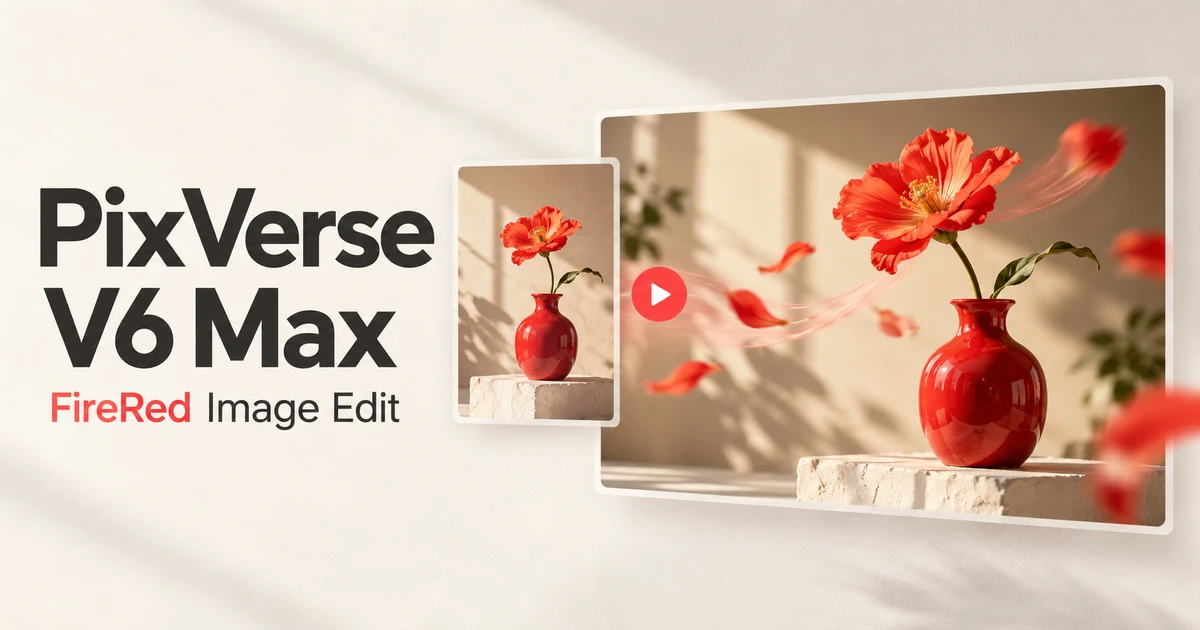
Supplied demonstration video; the cover is an original AI illustration. Neither is a generation test performed on this site.

PixVerse V6 Max demonstration

FAQ

PixVerse V6 Max questions

Create Short Videos with PixVerse V6 Max FAQ

01

No. Write a scene brief for text-to-video, or upload one image for image-to-video. Both modes need a description of the action. For a product post, a prepared photo helps set the appearance; a text brief is enough for an early scene concept.

02

Prepare a single JPG, PNG or WebP up to 20 MB, with neither side exceeding 10000 pixels. Crop it to the intended frame before uploading. A clear subject and an explicit motion description make the result easier to assess.

03

Yes. The available lengths are whole seconds from 1 to 15, and the resolutions are 360p, 540p, 720p and 1080p. The initial setting is five seconds at 720p. Max has no 4K output option in this workspace.

04

For text-to-video, select 9:16; 21:9 and six other ratios are also available. For image-to-video, upload a photo already cropped to the desired shape. Its dimensions determine the frame, so there is no separate ratio setting.

05

Generated sound is optional and changes the estimate. This Max integration does not accept an uploaded audio track. Add a chosen soundtrack in your editor if you need exact music, speech or timing; generated audio does not guarantee those details.

06

At 720p the estimate is 53 credits without sound or 72 with sound. At 1080p it is 106 or 135 credits respectively. Check the on-screen estimate for your selected duration, resolution and audio setting before generating.

07

Max here starts from text or one image. It does not accept an ending frame, a video reference, video extension or multi-clip instructions. Use the linked model pages to compare other available workflows before preparing those inputs.

08

The supplied video is a model demonstration, while the FireRed cover is original AI artwork. They are not a record of a generation test on this site and do not guarantee your result. Inspect your own full clip and downloaded file before use.

Explore More AI Video Models

Veo 3.1 Free AI Video Generator

Veo 3.1 Free AI Video Generator

New

Veo 3.1 is Google DeepMind's most advanced free AI video generator with native audio generation. It creates synchronized sound effects, dialogue, and environmental audio alongside 1080p video at 24 FPS — all available online with no watermark. Generate unlimited HD videos up to 8 seconds per clip, extendable to 60+ seconds.

Try now
Sora 2

Sora 2

Sora 2 is OpenAI's flagship video generation model capable of producing high-quality videos from both text descriptions and image inputs. It understands complex scene compositions, character interactions, camera movements, and real-world physics to deliver cinematic results. Sora 2 represents a major leap in AI video generation with improved temporal consistency, longer duration support, and more faithful prompt interpretation.

Try now
HappyHorse

HappyHorse

New

HappyHorse is Alibaba's next-generation AI video model built on a native multimodal architecture. A single unified model covers four production scenarios — text-to-video, image-to-video, multi-image reference-to-video, and in-place video editing — with native audio-video synthesis, 720p/1080p output, and deep adaptation for advertising, e-commerce, short drama, and social creative content production.

Try now
Wan 2.6

Wan 2.6

New

Wan 2.6 is Alibaba's video generation model delivering high-quality videos with diverse style support, smooth motion, and cinematic output from text prompts and reference images.

Try now
Plan Your Next Video with Kling 4.0

Plan Your Next Video with Kling 4.0

New

Kling 4.0 in FireRed Image Edit gives you several starting points for a video: a written shot brief, a first image with an optional last image, or a set of visual references. Use those inputs to explore product motion, character actions or a storyboard sequence. Choose 720p or 1080p and evaluate the draft across its full timeline before building your final edit.

Try now
Kling 2.6

Kling 2.6

Kling 2.6 is Kuaishou's latest AI video generation model, recognized for its exceptional motion quality and cinematic output. Built on advanced spatiotemporal modeling, Kling 2.6 produces videos with fluid character movement, dynamic camera transitions, and rich visual detail. It supports both text-to-video and image-to-video generation, making it a versatile tool for creators seeking professional-quality AI video content.

Try now

Try one focused shot with PixVerse V6 Max

Start with a clear photo or a scene brief. Choose your duration and sound settings, check the credits and create a draft you can review.

Create with PixVerse V6 Max
user 1
user 2
user 3
user 4
user 5

10,000+ users

FireRed Image EditFireRed Image Edit

FireRed Image Edit is an open-source, general-purpose image editing model by Xiaohongshu, trained on 1.6 billion samples for production-grade editing.

AI Image Generator

  • GPT-Image 2
  • Seedream 5.0
  • Nano Banana 2
  • Grok 4.2 Image
  • Nano Banana Pro

AI Video Generator

  • Gemini Omni
  • HappyHorse
  • Seedance 2
  • Veo 3.1
  • Grok Imagine 1.5
  • Wan 2.6

AI Tools

  • Background Remover
  • Image Upscaler
  • Photo Restoration
  • AI Background Changer
  • AI Object Remover
  • AI Product Photo Generator

Video Effects

  • AI Hug Video
  • AI Kiss Video
  • AI Dance Video
  • Earth Zoom Out
  • Bullet Time Video
  • Product 360° Video

Explore

  • Showcases
  • Blog
  • Pricing
  • API
  • Changelog
  • About
© 2026 FireRed Image Edit· All rights reserved
Privacy PolicyTerms of ServiceRefund PolicyRefund RequestAbout Us
DeutschEnglishEspañolFrançais繁體中文日本語한국어Türkçe中文עבריתPolski
HomeAI ToolsAssetsProfile