
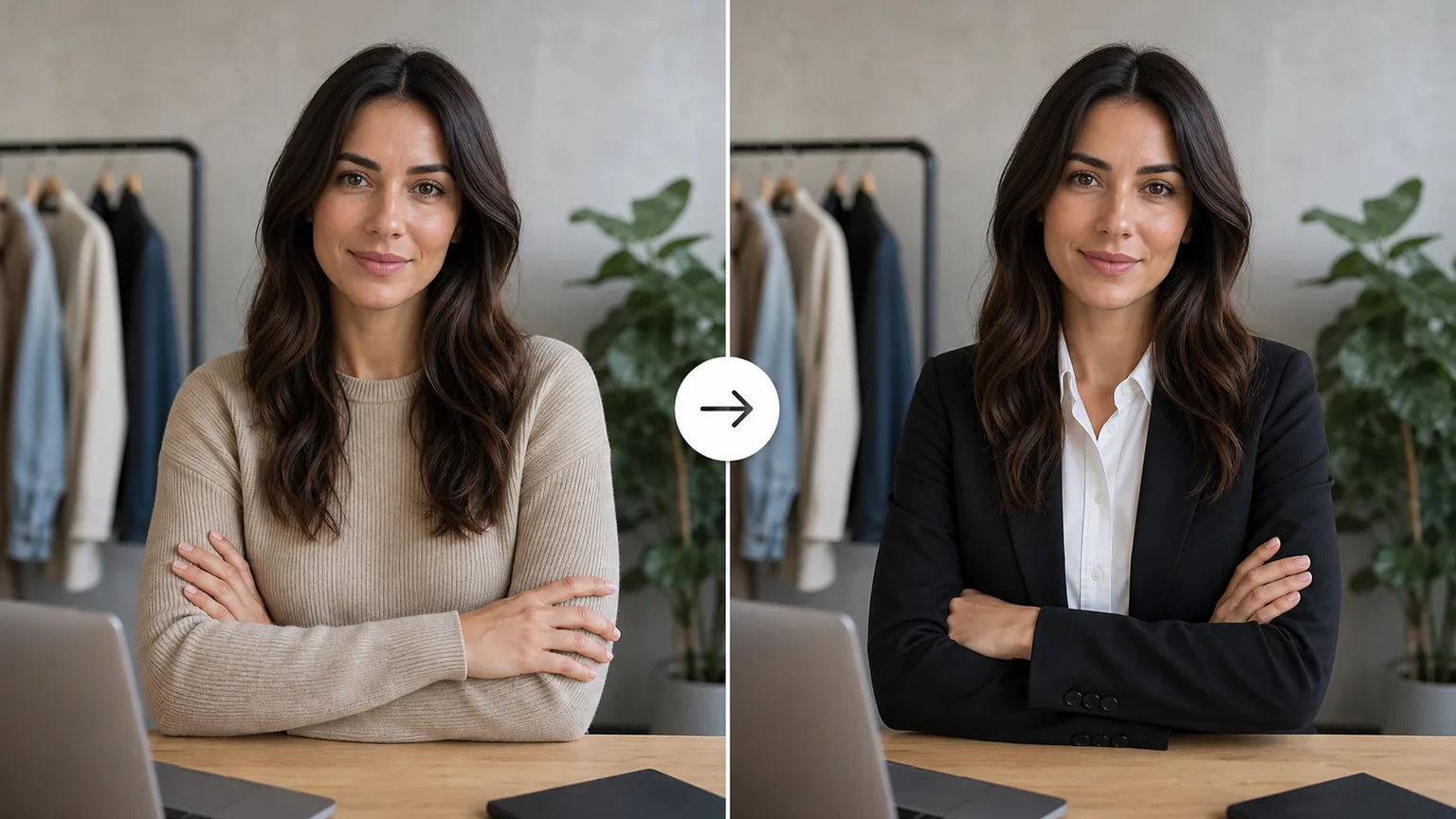
Casual to Business Outfit
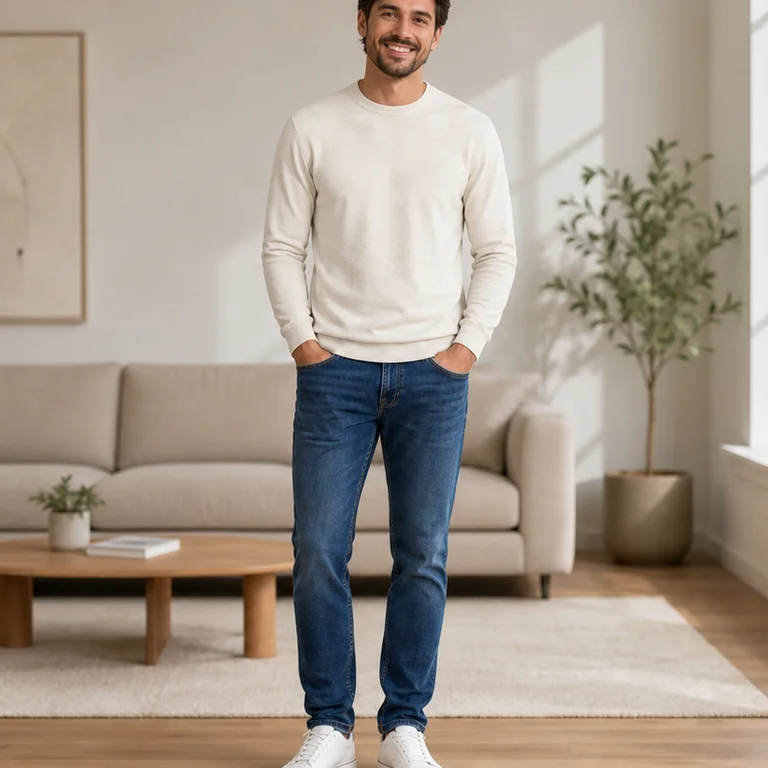

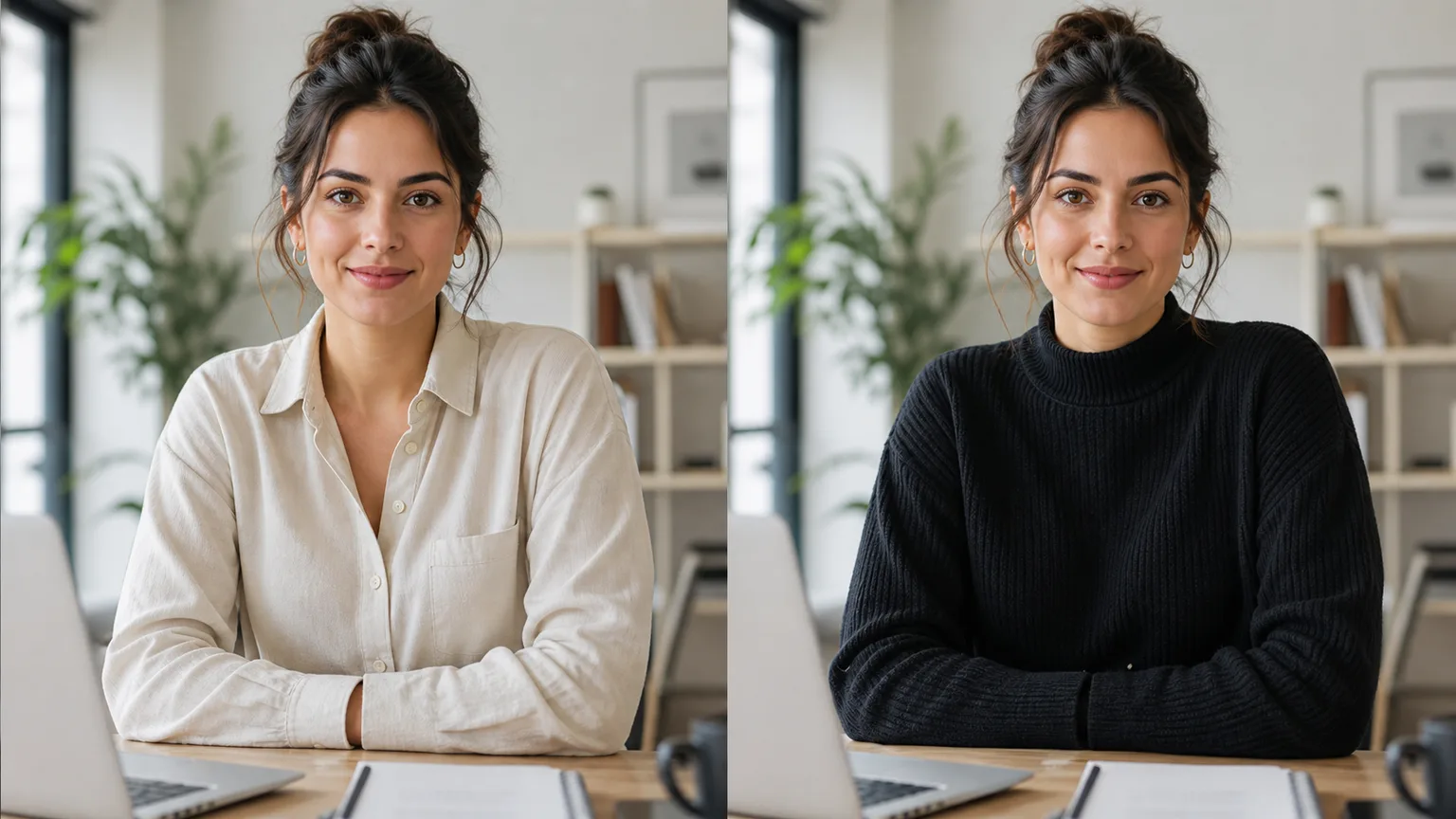
The AI Outfit Changer replaces clothing while keeping the person, face, pose, body proportions, lighting, and background stable. It works best when the full garment outline is visible. Crossed arms, long hair over collars, handbags, layered coats, logos, and reflective fabric can cause merged sleeves or invented seams and deserve a full-size review.
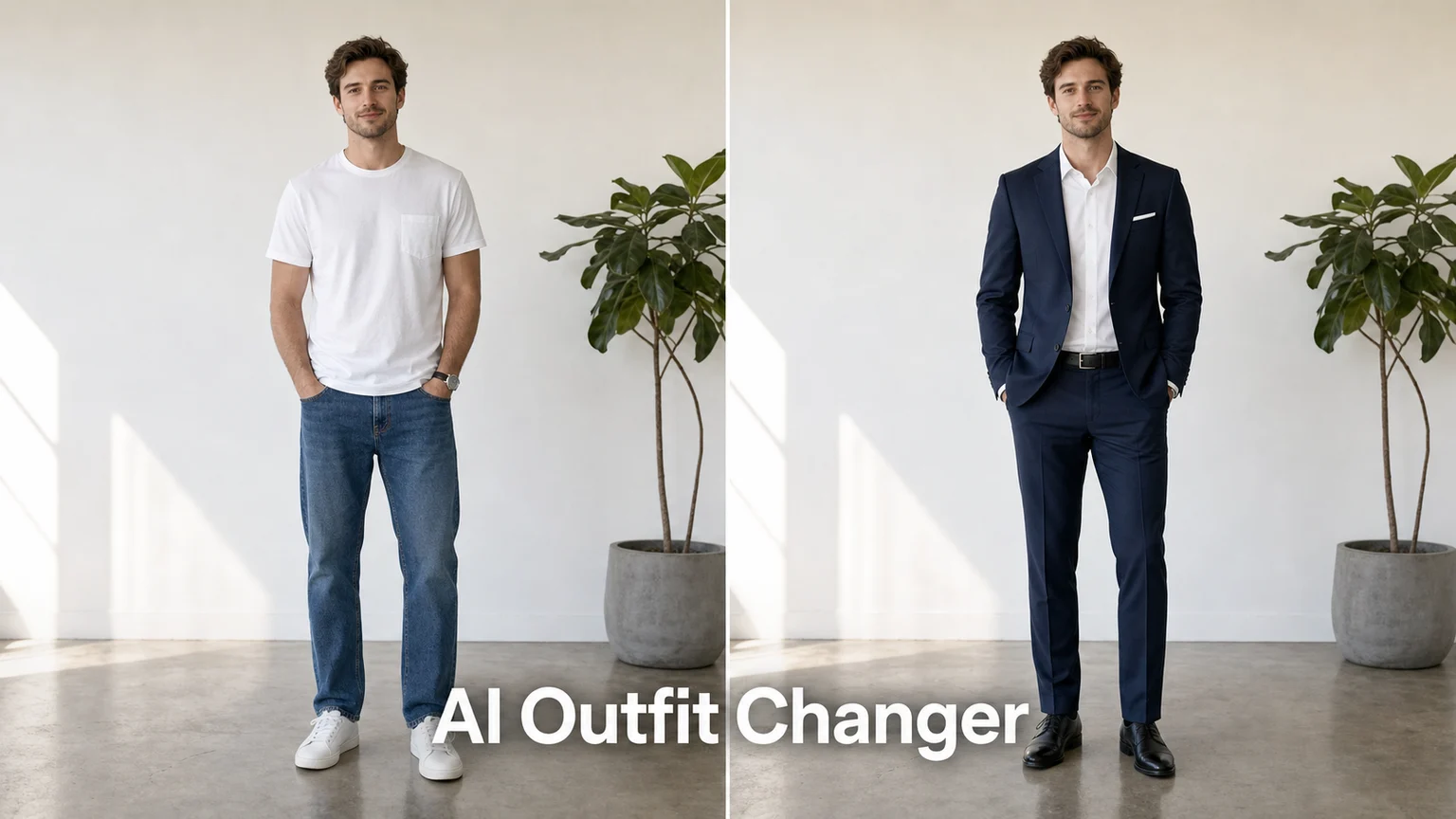
The AI Outfit Changer replaces clothing while keeping the person, face, pose, body proportions, lighting, and background stable. It works best when the full garment outline is visible. Crossed arms, long hair over collars, handbags, layered coats, logos, and reflective fabric can cause merged sleeves or invented seams and deserve a full-size review.
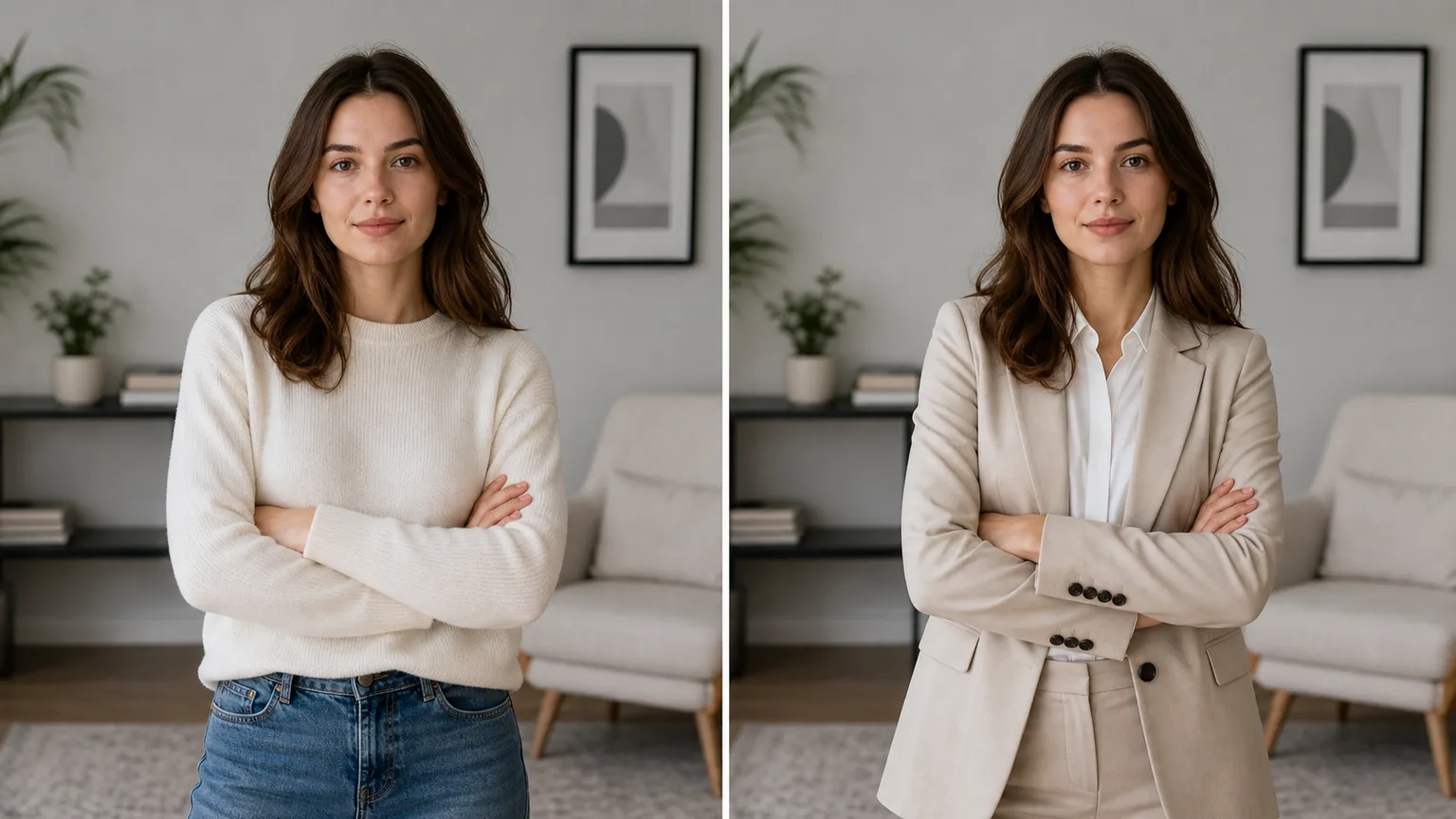
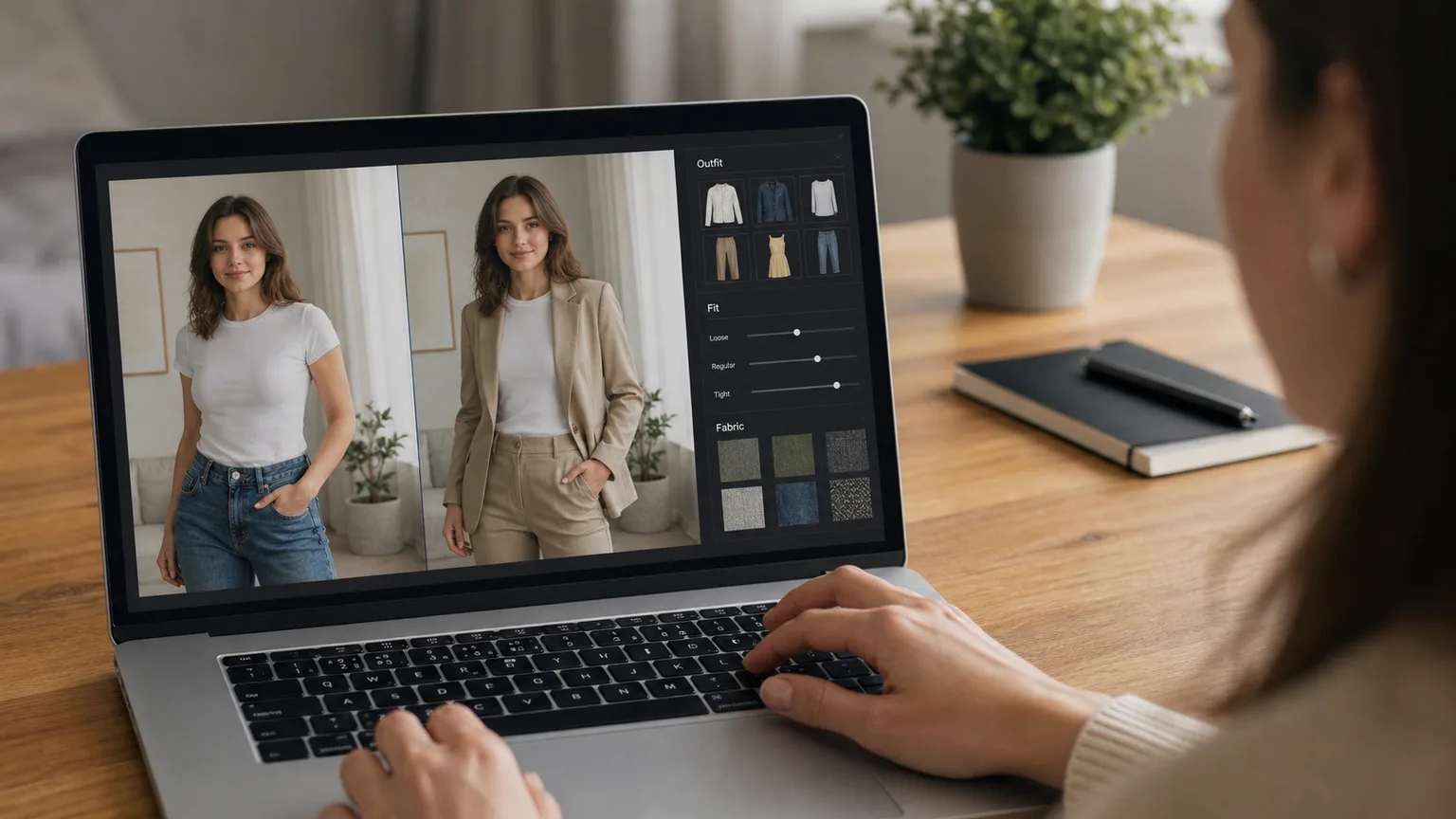
Use the original file rather than a social-media screenshot.
Choose one visual goal and one preservation setting.
Compare edges, faces, hands, text, and repeated patterns at 100%.
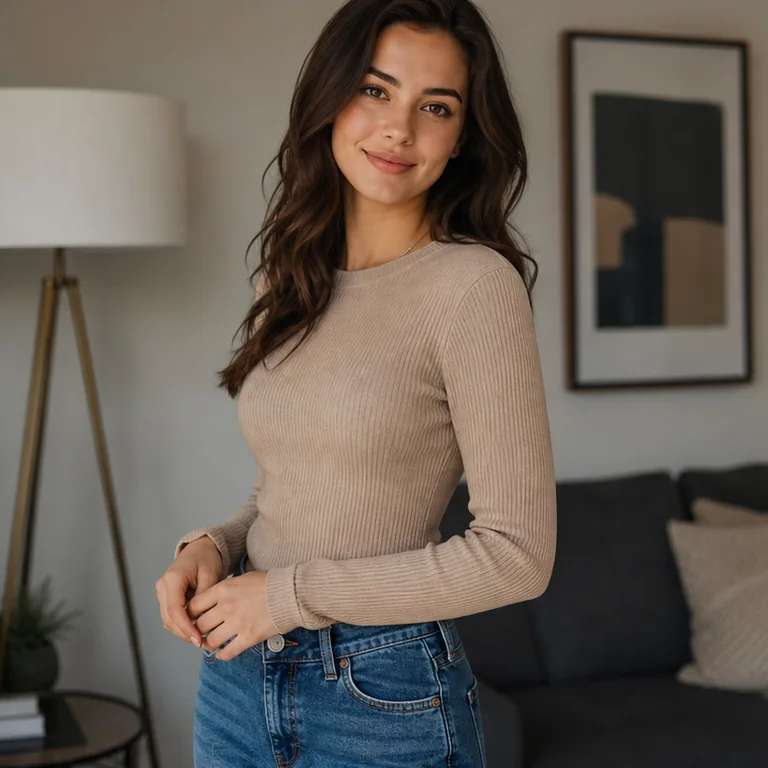
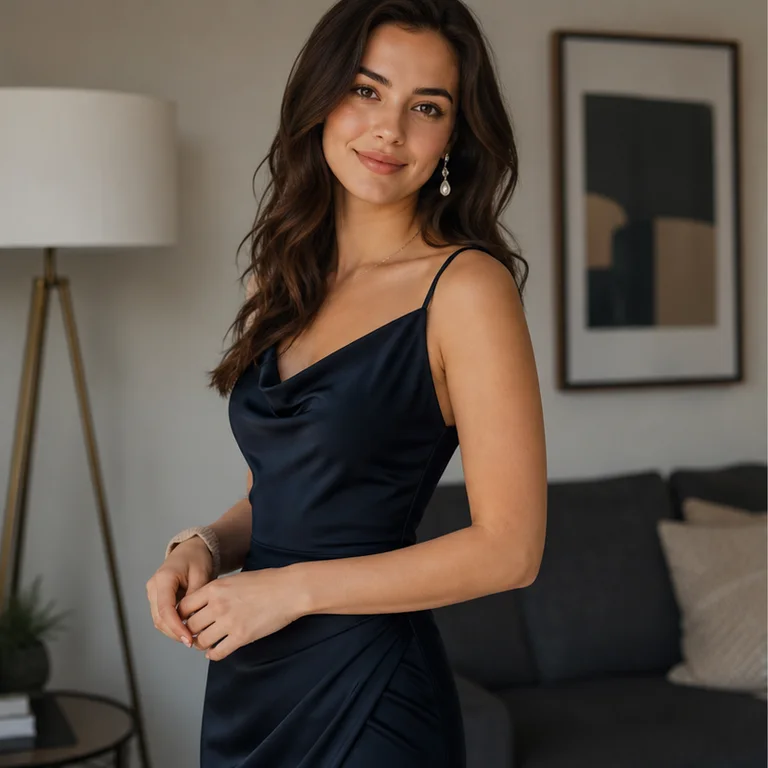
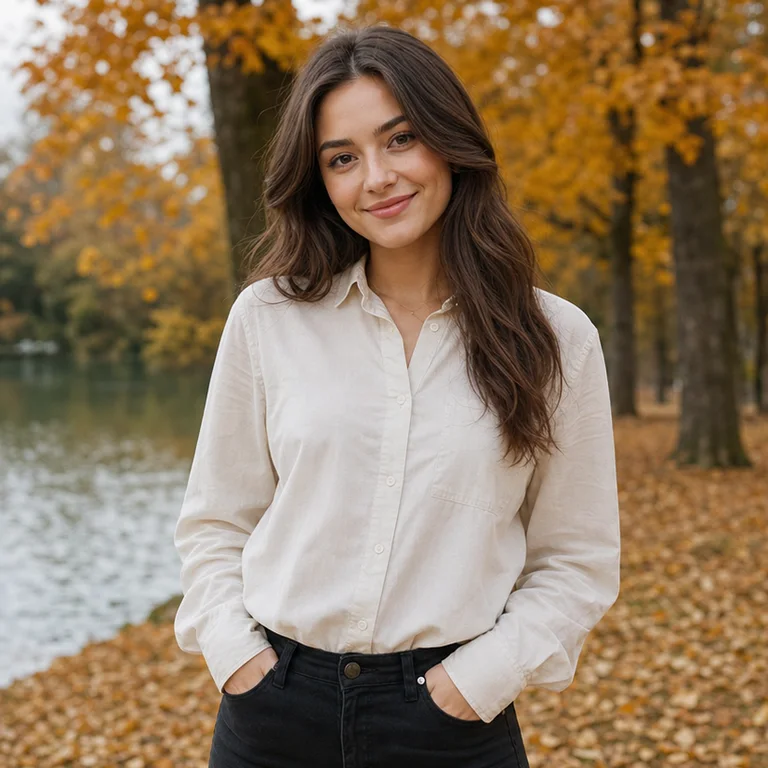
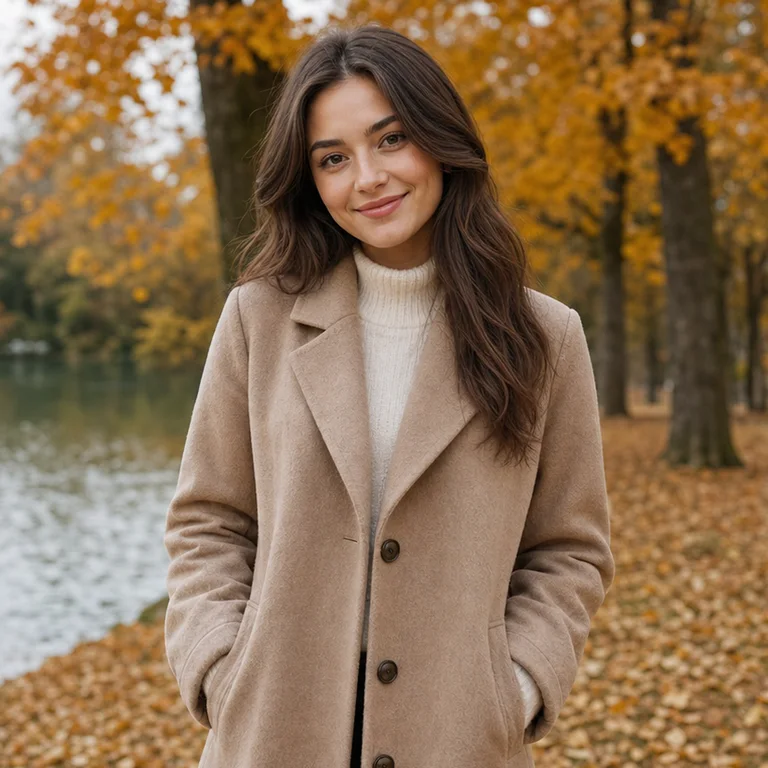
No account wall before the first result
Focused controls instead of a generic prompt box
Visible failure guidance before download
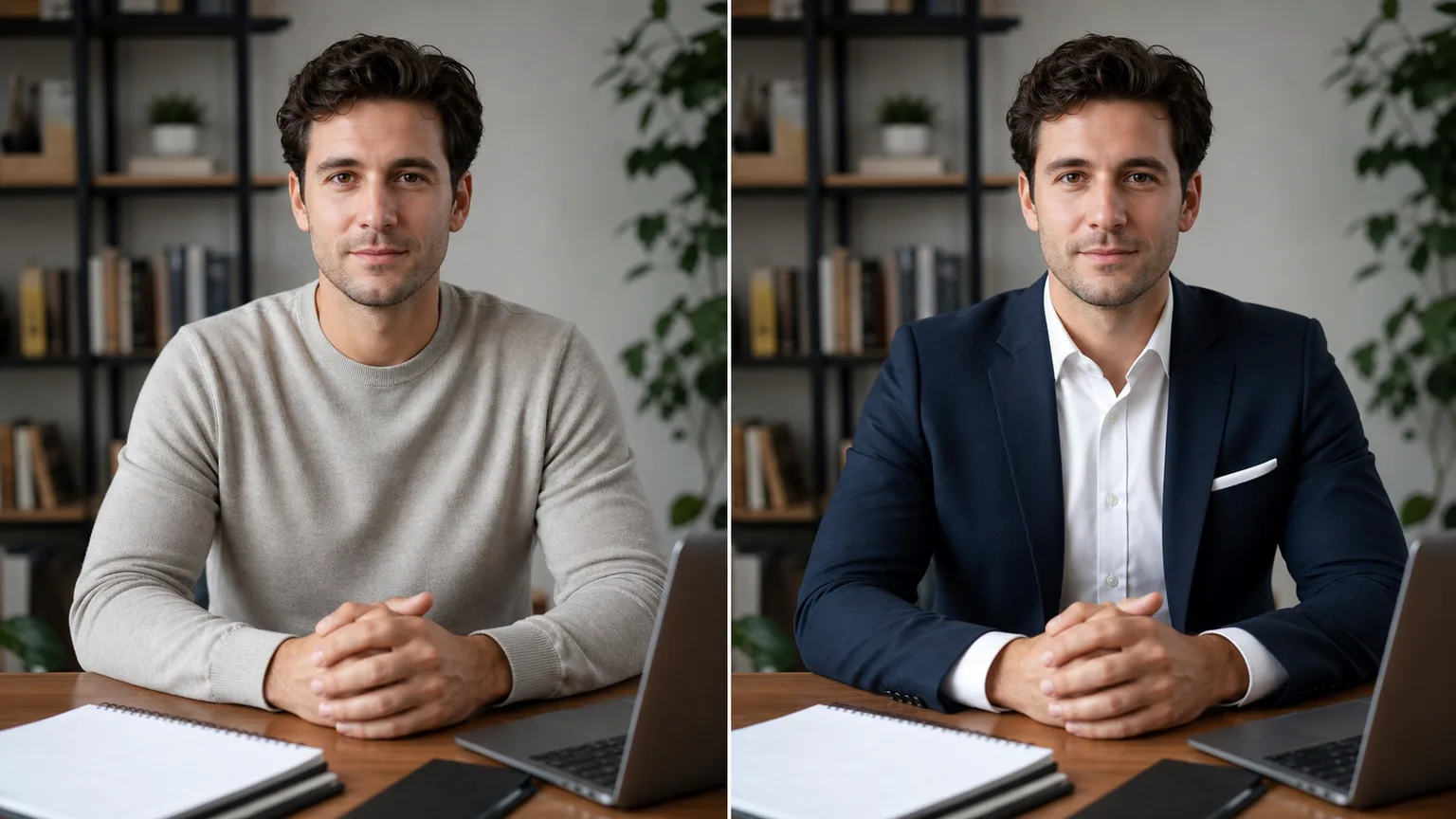
Front-facing or three-quarter portraits with the full garment outline and unobstructed shoulders give the cleanest clothing change.
Use the preservation-focused option and describe only the intended change. Avoid asking for a new pose, camera angle, and background in the same pass.
For Casual to Business Outfit, begin with Casual; generate once before adding extra instructions so you can see which setting caused the change.
Crossed arms, hair over collars, layered coats, bags, logos, and reflective fabric can create merged sleeves or invented seams.
Rights depend on the source photo, brands, recognizable people, and the intended market. Review those rights separately; a generated result is not automatic clearance.
Upload the least-compressed original available. Repeated JPEG saves, tiny screenshots, and enlarged thumbnails give the model fewer reliable edges to preserve.
Use a narrower description and run a second pass. Complex local repairs are more reliable when the requested area and surrounding texture are described precisely.
No local ComfyUI install is required. The editor runs in the browser; generation still needs an internet connection.
“I used it for Casual to Business Outfit. The first pass was close, and the focused controls made the second pass predictable.”
Maya R.: “I used it for Casual to Business Outfit. The first pass was close, and the focused controls made the second pass predictable.”
Jon K.: “For Casual to Business Outfit, it kept the framing better than a long free-form prompt. I still checked small edges at full size.”
Ari S.: “My first result pushed the effect too far. Dropping back to Casual kept the source more believable.”
Lena P.: “The before-and-after view exposed a small texture error I would have missed on a phone screen.”
Chris M.: “I like that the page says where AI Outfit Changer can fail. That saved me from using the wrong source photo.”
Noah T.: “Upload from mobile was quick, but I downloaded and reviewed the final file on desktop before publishing.”
Sofia D.: “Casual to Business Outfit worked well after I removed a second request from the prompt. One edit per pass is the useful rule here.”
Alex M.: “AI Outfit Changer – Change Clothes in Photos with AI is straightforward to use and gives me a useful starting point quickly when I need fresh social visuals.”
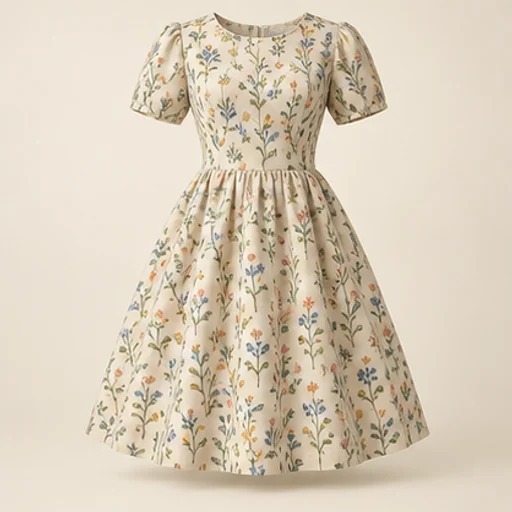
See how a fabric could read on a garment before cutting into it. The sewing fabric visualizer keeps the garment reference as the design guide and uses your chosen material reference for color and pattern; the result is a visual comparison rather than a measured fit simulation.
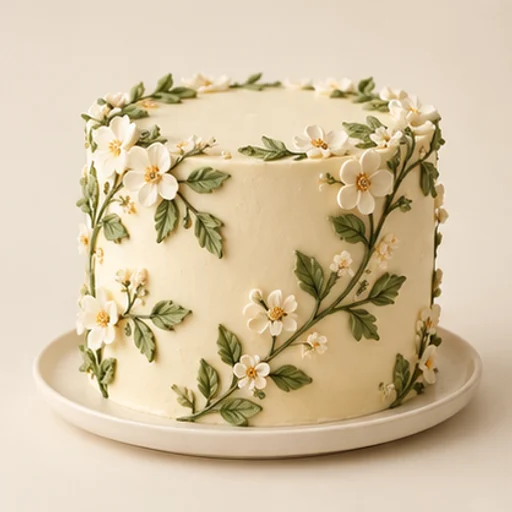
Cake sketch to photo helps a baker turn an existing drawing into a realistic design reference for a customer conversation. It follows the sketch’s tier layout, decoration positions and palette rather than replacing the drawing with an unrelated cake.
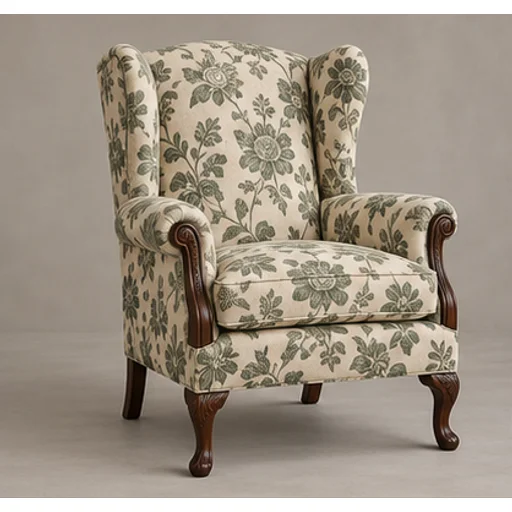
Preview a new textile on your own furniture before committing to reupholstery. The upholstery fabric visualizer uses the original chair or sofa as the shape reference and a swatch or chosen template as the material reference.
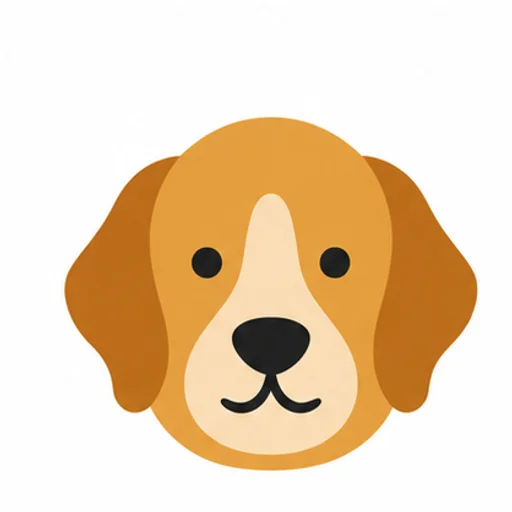
Build a rug pattern draft with broad color areas from an original photo or illustration. The tufting pattern generator is intended for planning and tracing: flat regions and a clear silhouette matter more than a realistic photograph of yarn.
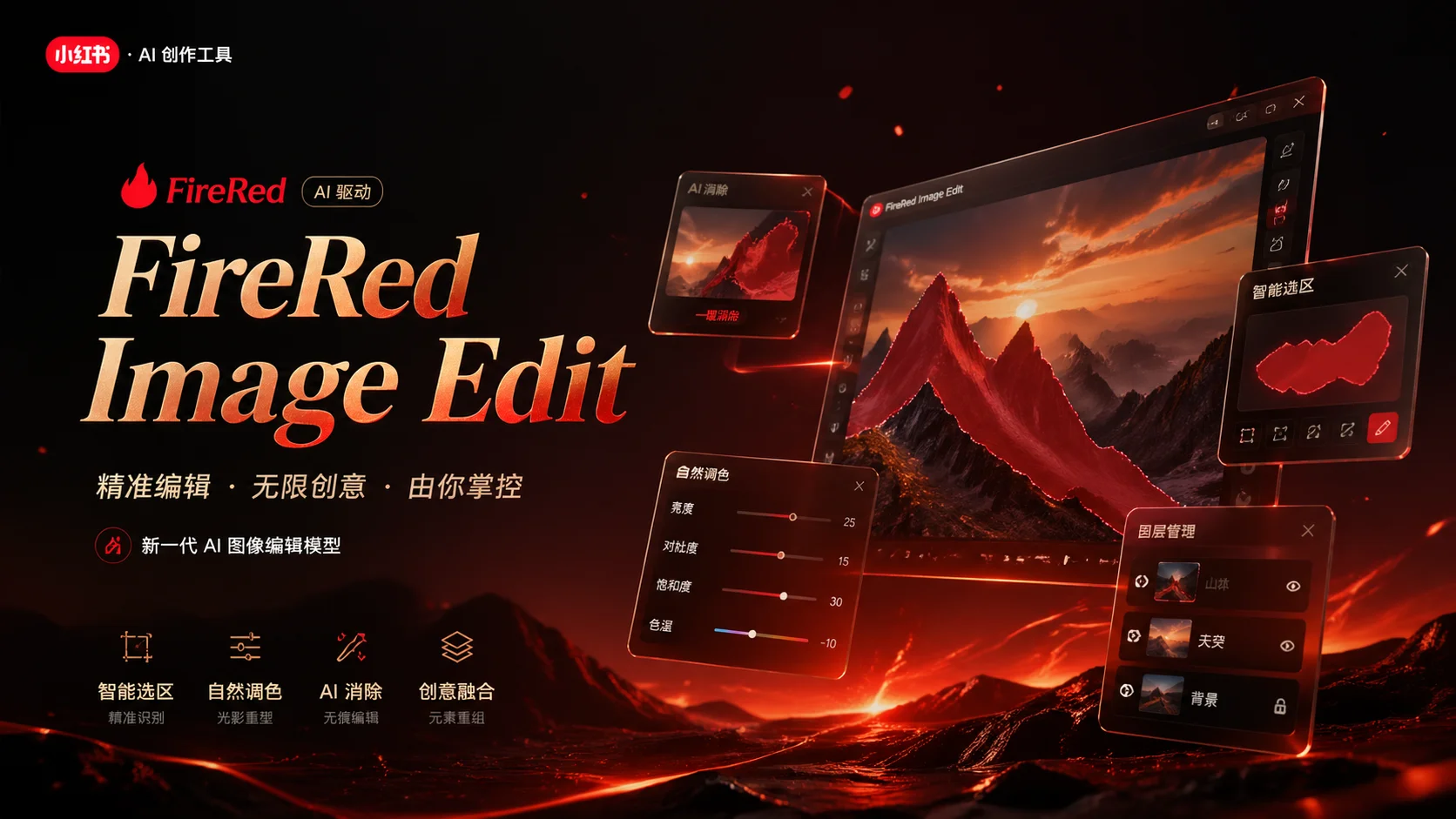
Use the FireRed Image Edit AI model online ? Xiaohongshu FireRed's open-source instruction-driven image editing model fo

OpenAI's most advanced image generation model with native Thinking Mode, 95%+ text rendering accuracy, web search during

Nano Banana Pro (also known as Gemini 3 Pro Image ) is a free AI image generator by Google DeepMind that produces stunni

Veo 3.1, released in October 2025 by Google DeepMind, delivers cinematic 1080p videos with native audio generation — fre

OpenAI's most advanced general video generation model — create high-quality videos from text prompts and images with rea
ByteDance's next-generation AI video model with the revolutionary @-reference system. Combine text, images, video clips,
Start editing your images with state-of-the-art AI technology




10,000+ users